
01 · Definition
What a Prometheus metric is
A Prometheus metric is a named number that your application keeps up to date, such as how many requests it has served. Prometheus reads it every few seconds and stores each reading, so you can chart how the number changes over time.
Applications publish their metrics as plain text on an HTTP endpoint, usually /metrics. Every line is one number:
Every combination of label values is its own time series. A POST that returned 500 and a GET that returned 200 are counted separately, as two series of the same metric. That is what lets a query pick out only the errors, or only one route.
Two comment lines above the samples give each metric a description and a type:
# HELP http_requests_total Total HTTP requests handled.
# TYPE http_requests_total counter
http_requests_total{method="GET",status="200"} 10432
http_requests_total{method="POST",status="500"} 17Prometheus pulls: the scraper asks and your app answers. Every answer becomes one more reading in storage, which is what queries, dashboards and alerts read.
02 · Types
The four Prometheus metric types
The type decides how a number behaves over time, and that decides which query makes sense for it.
Counter: a number that only goes up
Requests served, errors, bytes sent. The raw value is a running total since the process started, which is rarely what you want to see. Ask how fast it grows instead:
rate(http_requests_total[5m])       # requests per second
increase(http_requests_total[1h])   # requests in the last hour
When the process restarts, the counter drops to zero. rate() and increase() notice the drop and carry on as if it hadn't happened.
Gauge: a number that goes up and down
Memory in use, items in a queue, open connections. A gauge is a snapshot, so its raw value is the answer:
process_resident_memory_bytes                        # memory now
max_over_time(process_resident_memory_bytes[1h])     # peak in the last hour
Histogram: how values are spread
Use a histogram for durations and sizes, where the average hides the slow requests you care about. Instead of storing every request's duration, it counts how many requests finished within each limit. The buckets are cumulative: the 250 ms bucket also contains everything under 100 ms.
histogram_quantile() estimates about 177 ms.# p95 latency across every instance
histogram_quantile(0.95, sum by (le) (rate(http_request_duration_seconds_bucket[5m])))Because bucket counts add up, you can combine histograms from every instance and get one percentile for the whole service. Pick bucket limits around your targets: if the goal is 300 ms, put a bucket at 300 ms.
Summary: percentiles computed in the app
A summary works out percentiles such as p50 and p99 inside your application and publishes them ready-made:
rpc_duration_seconds{quantile="0.99"} 0.231That is convenient for one process and a dead end for a service. Percentiles from five instances cannot be averaged into the service's p99, and you can't ask for a p95 later if the app only computed p50 and p99. Reach for a histogram unless you have a reason not to.
| Type | Use it for | Query it with |
|---|---|---|
| Counter | Requests served, errors, bytes sent | rate(), increase() |
| Gauge | Memory in use, queue depth, temperature | Read it directly, max_over_time() |
| Histogram | Request duration, response size | histogram_quantile() |
| Summary | Latency of one process | Read the quantile label |
03 · What to watch
Prometheus metrics worth watching
An exporter can publish hundreds of metrics. A useful first dashboard needs seven. The first three come from your own service: a request counter and a duration histogram. The rest come from node_exporter on each host, plus up, which Prometheus records for every target it scrapes.
sum by (route) (rate(http_requests_total[5m]))sum(rate(http_requests_total{status=~"5.."}[5m]))
/ sum(rate(http_requests_total[5m]))histogram_quantile(0.95,
sum by (le) (rate(http_request_duration_seconds_bucket[5m])))1 - avg by (instance) (rate(node_cpu_seconds_total{mode="idle"}[5m]))node_memory_MemAvailable_bytes / node_memory_MemTotal_bytesnode_filesystem_avail_bytes / node_filesystem_size_bytesup == 0Alert on up == 0 first
When a target stops answering, its other metrics don't turn red. They stop arriving, and a dashboard shows a gap that is easy to miss. up is 0 for every failed scrape, so it is the one alert that catches an exporter or a whole host going away.
04 · Collect
Collect and chart Prometheus metrics
1. Expose /metrics from your code
Every major language has a Prometheus client library. Each example creates the counter and histogram from this guide and serves them on port 8000:
Installpip install prometheus-client
from prometheus_client import Counter, Histogram, start_http_server

REQUESTS = Counter("http_requests", "HTTP requests handled.", ["method", "status"])
LATENCY = Histogram("http_request_duration_seconds", "Request latency.")

start_http_server(8000)  # serves /metrics on port 8000

# Call this from your request handler
def record(method, status, handle):
    with LATENCY.time():
        handle()
REQUESTS.labels(method, str(status)).inc()Installnpm install prom-client
import { createServer } from "node:http";
import { Counter, Histogram, register } from "prom-client";

const requests = new Counter({ name: "http_requests_total", help: "HTTP requests handled.", labelNames: ["method", "status"] });
const latency = new Histogram({ name: "http_request_duration_seconds", help: "Request latency." });

createServer(async (req, res) => {
  if (req.url === "/metrics") {
    res.setHeader("Content-Type", register.contentType);
    res.end(await register.metrics());
    return;
  }
  const stopTimer = latency.startTimer();
  res.end("ok");
  stopTimer();
  requests.inc({ method: req.method, status: String(res.statusCode) });
}).listen(8000);Installgo get github.com/prometheus/client_golang
package main

import (
	"net/http"

	"github.com/prometheus/client_golang/prometheus"
	"github.com/prometheus/client_golang/prometheus/promauto"
	"github.com/prometheus/client_golang/prometheus/promhttp"
)

var (
	requests = promauto.NewCounterVec(prometheus.CounterOpts{
		Name: "http_requests_total", Help: "HTTP requests handled.",
	}, []string{"method", "status"})
	latency = promauto.NewHistogram(prometheus.HistogramOpts{
		Name: "http_request_duration_seconds", Help: "Request latency.",
	})
)

func handle(w http.ResponseWriter, r *http.Request) {
	timer := prometheus.NewTimer(latency)
	defer timer.ObserveDuration()
	w.Write([]byte("ok"))
	requests.WithLabelValues(r.Method, "200").Inc()
}

func main() {
	http.Handle("/metrics", promhttp.Handler())
	http.HandleFunc("/", handle)
	http.ListenAndServe(":8000", nil)
}Installcargo add prometheus
use prometheus::{register_histogram, register_int_counter_vec, Encoder, TextEncoder};
use std::io::{Read, Write};
use std::net::TcpListener;

fn main() {
    let requests = register_int_counter_vec!(
        "http_requests_total", "HTTP requests handled.", &["method", "status"]
    ).unwrap();
    let latency = register_histogram!(
        "http_request_duration_seconds", "Request latency."
    ).unwrap();

    // In a real service, do this in your request handler.
    let timer = latency.start_timer();
    requests.with_label_values(&["GET", "200"]).inc();
    timer.observe_duration();

    // Serve /metrics. With axum or actix, return this body from a route instead.
    for stream in TcpListener::bind("0.0.0.0:8000").unwrap().incoming() {
        let mut stream = stream.unwrap();
        stream.read(&mut [0; 1024]).unwrap();
        let mut body = Vec::new();
        TextEncoder::new().encode(&prometheus::gather(), &mut body).unwrap();
        write!(stream, "HTTP/1.1 200 OK\r\nContent-Length: {}\r\n\r\n", body.len()).unwrap();
        stream.write_all(&body).unwrap();
    }
}Installio.prometheus:prometheus-metrics-core + prometheus-metrics-exporter-httpserver
import io.prometheus.metrics.core.datapoints.Timer;
import io.prometheus.metrics.core.metrics.Counter;
import io.prometheus.metrics.core.metrics.Histogram;
import io.prometheus.metrics.exporter.httpserver.HTTPServer;

public class App {
    static final Counter requests = Counter.builder()
            .name("http_requests_total").help("HTTP requests handled.")
            .labelNames("method", "status").register();
    static final Histogram latency = Histogram.builder()
            .name("http_request_duration_seconds").help("Request latency.")
            .classicOnly().register();

    public static void main(String[] args) throws Exception {
        HTTPServer.builder().port(8000).buildAndStart(); // serves /metrics

        // In a real service, do this in your request handler.
        try (Timer timer = latency.startTimer()) {
            requests.labelValues("GET", "200").inc();
        }
        Thread.currentThread().join();
    }
}Installdotnet add package prometheus-net
using Prometheus;

var requests = Metrics.CreateCounter("http_requests_total", "HTTP requests handled.", "method", "status");
var latency = Metrics.CreateHistogram("http_request_duration_seconds", "Request latency.");

using var server = new MetricServer(port: 8000); // serves /metrics
server.Start();

// In a real service, do this in your request handler.
using (latency.NewTimer())
{
    requests.WithLabels("GET", "200").Inc();
}

await Task.Delay(Timeout.Infinite);
Open http://localhost:8000/metrics and you'll see the counter, and the histogram as _bucket, _sum and _count series. The Python client adds _total to the counter name itself. For software you don't own, such as databases, queues or the host itself, install an exporter that serves the same format.
2. Run Prometheus and Grafana
Your app now has a /metrics page, but nothing is reading it yet. That is the job of the Prometheus server, a separate program you run: it reads a config file listing the endpoints to scrape, requests each one every 15 seconds, and stores the results. Grafana is another program that draws dashboards from what Prometheus stored.
The quickest way to run both is Docker Compose. Put these three files in one folder:
compose.yaml
services:
  prometheus:
    image: prom/prometheus
    ports: ["9090:9090"]
    volumes:
      - ./prometheus.yml:/etc/prometheus/prometheus.yml
    extra_hosts: ["host.docker.internal:host-gateway"]
  grafana:
    image: grafana/grafana
    ports: ["3000:3000"]
    volumes:
      - ./grafana-datasource.yml:/etc/grafana/provisioning/datasources/prometheus.yml
prometheus.yml
scrape_configs:
  - job_name: api
    scrape_interval: 15s
    static_configs:
      - targets: ["host.docker.internal:8000"]
grafana-datasource.yml
apiVersion: 1
datasources:
  - name: Prometheus
    type: prometheus
    url: http://prometheus:9090
    isDefault: true
Run docker compose up with your app running on port 8000. host.docker.internal is how the containers reach your machine.
- 01
Check the scrape in Prometheus
Open
http://localhost:9090, typeupand run it. A1means Prometheus reached your app. Any query from the list above works here too. - 02
Chart it in Grafana
Open
http://localhost:3000and sign in withadmin/admin. The Prometheus data source is already set up bygrafana-datasource.yml. Go to Explore, enter a query, and add it to a dashboard.
Use $__rate_interval in Grafana
rate() needs at least two samples inside its window. Zoom a Grafana panel in far enough and a fixed window like [1m] can hold fewer than that, so the line goes blank. Write rate(http_requests_total[$__rate_interval]) instead: Grafana then sets the window to at least four scrape intervals, whatever the zoom.
3. Or scrape straight into Maple
Maple can do the scraping, so there's no Prometheus server to run. It converts each sample to an OpenTelemetry metric, next to your traces and logs.
- 01
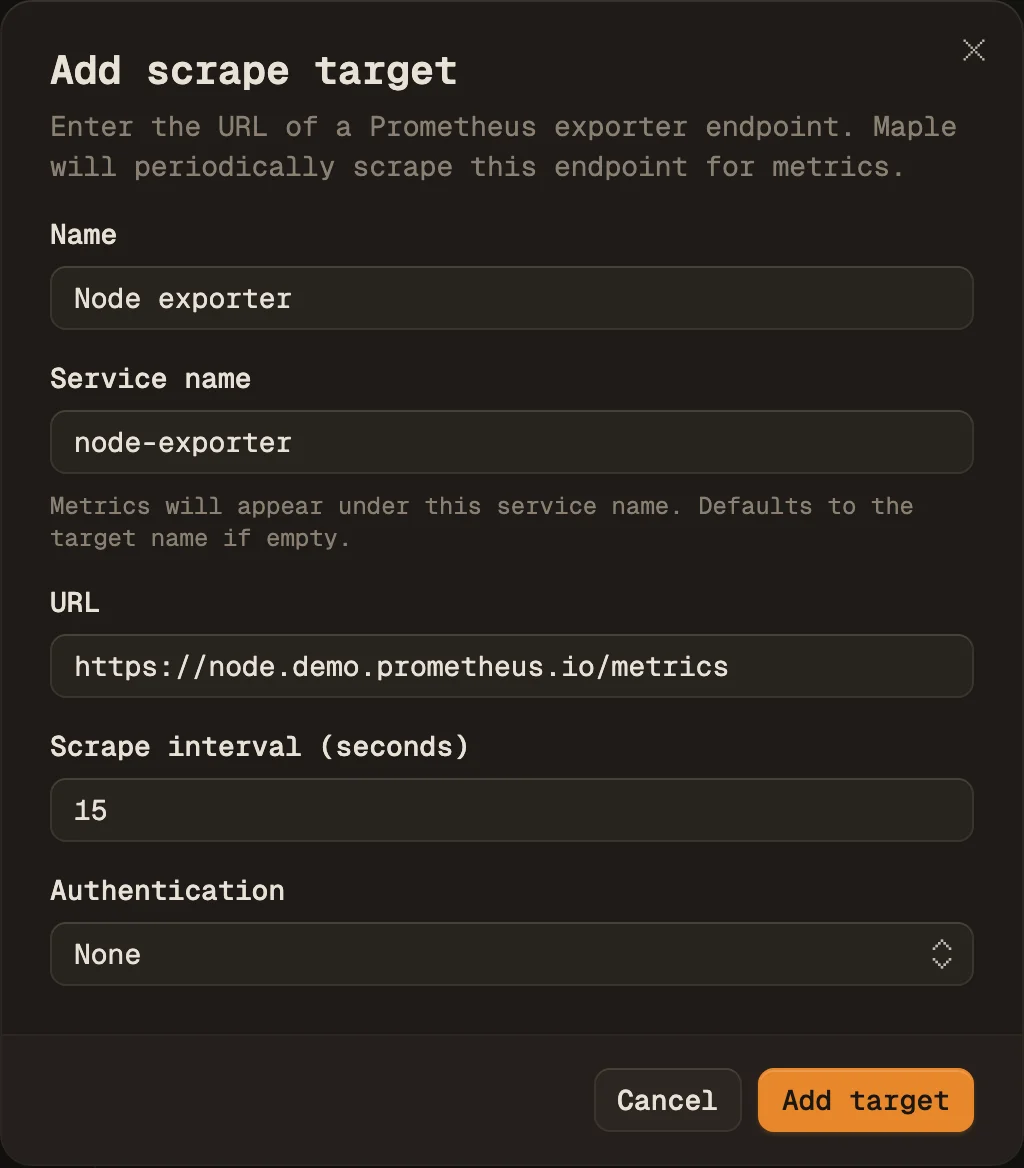
Add a target
Open Integrations → Prometheus, click Add target and enter the endpoint's URL, a scrape interval (5 to 300 seconds) and, if needed, a bearer token or basic auth. The service name is what the metrics appear under.
- 02
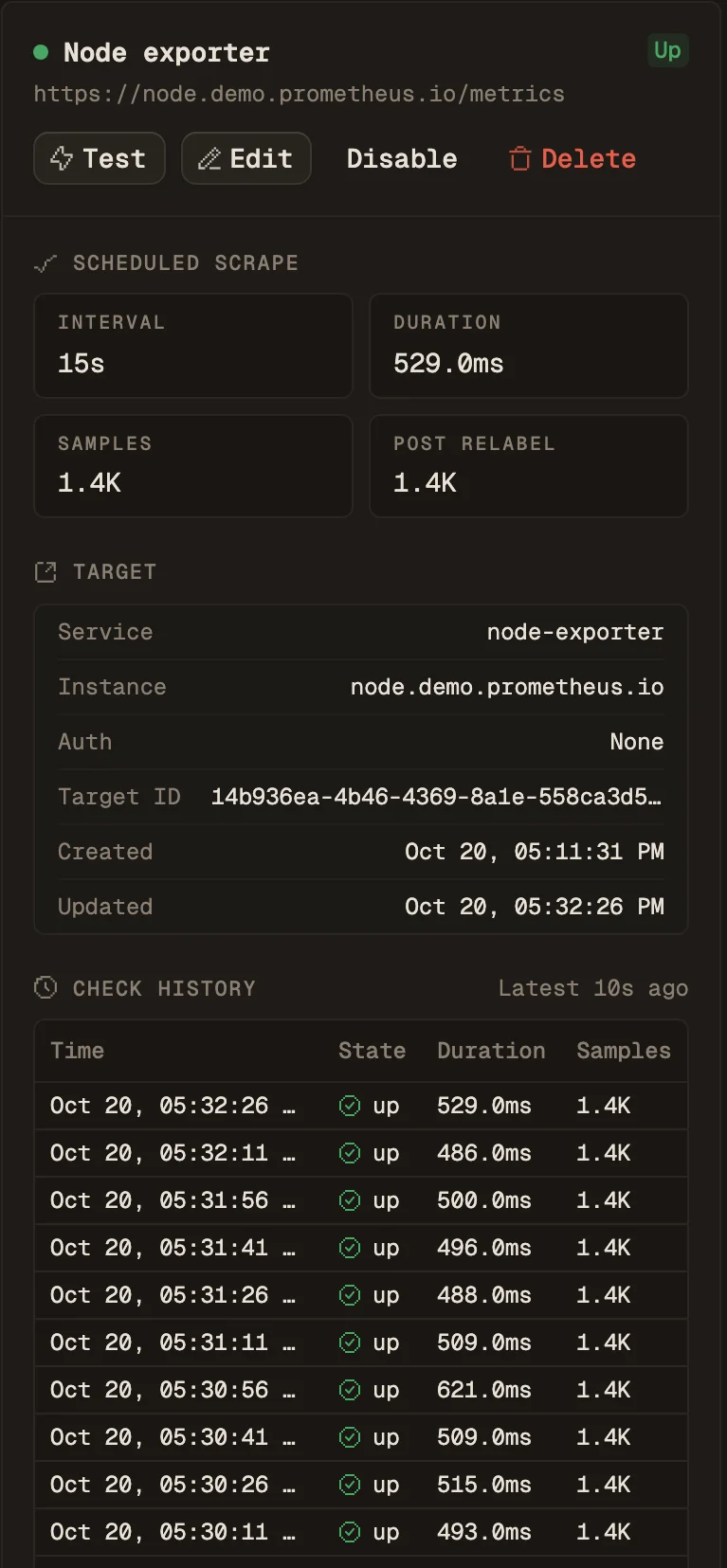
Check that it's up
Click Test for an immediate scrape. It reports success, or the exact HTTP, TLS or timeout error. Once the scheduled scrapes start, the target shows Up, with each run's duration and sample count in its check history.
- 03
Chart, then alert
Find the metric in the Metrics explorer. Counters default to
rate. Filter and group by any label, then use Add to dashboard or Create alert.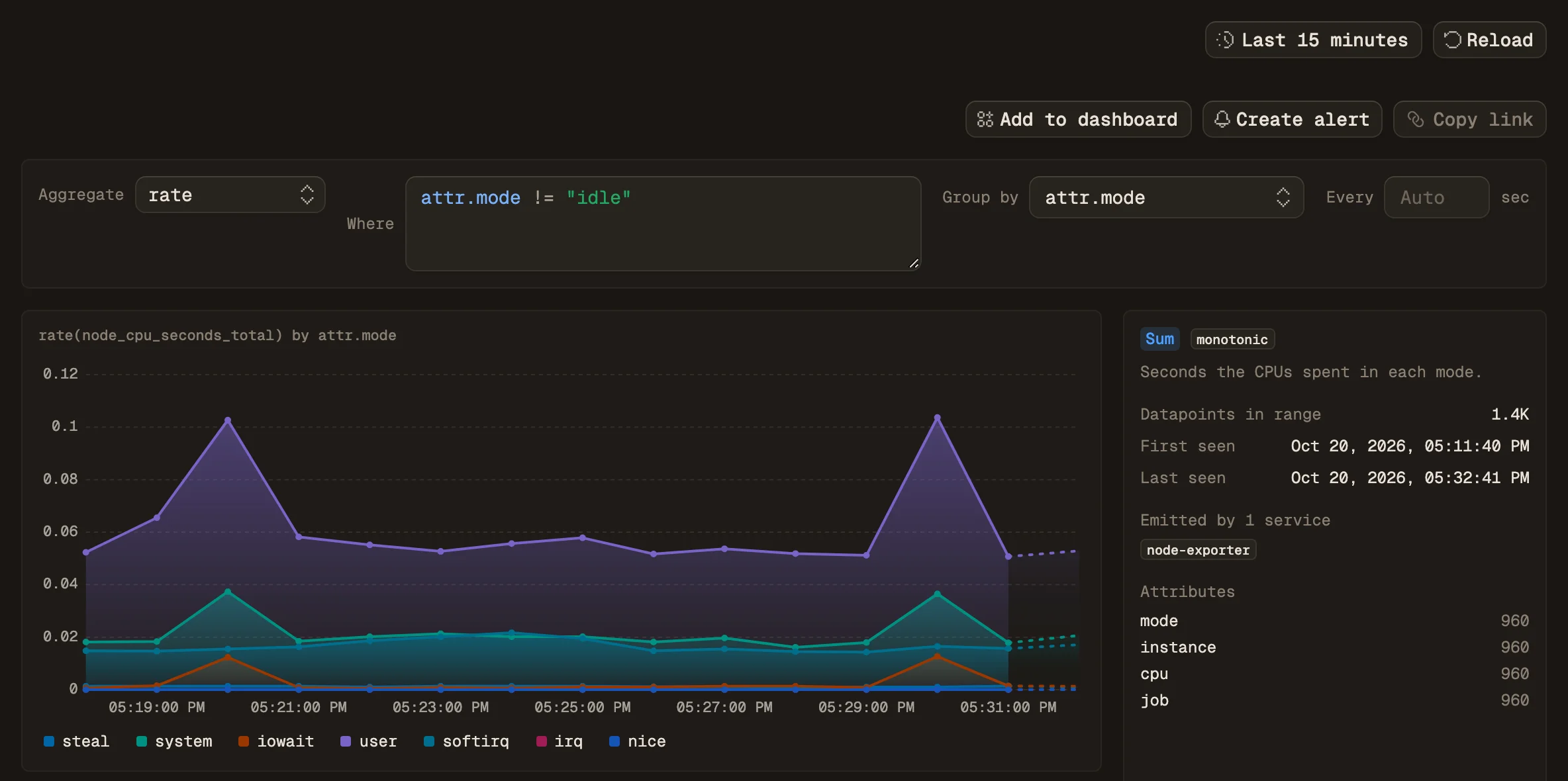
The same CPU query as in the list above, in Maple:
rateofnode_cpu_seconds_total, grouped bymode, idle filtered out.
| Prometheus type | Stored in Maple as |
|---|---|
| Counter | Cumulative monotonic sum |
| Gauge | Gauge (untyped metrics too) |
| Histogram | Histogram with the original bucket limits |
| Summary | _sum and _count as sums, the quantiles as a gauge |
Maple only scrapes public endpoints. For one inside a private network, run an OpenTelemetry Collector there with a prometheus receiver and send the results to Maple over OTLP.
Set it up in Maple
Scrape your first endpoint
Every field, the scrape history and troubleshooting are in the docs.
05 · Mistakes
Common Prometheus metric mistakes
Charting a raw counter
A counter only tells you something through its rate. Plotted raw it is a line that climbs, then drops to zero whenever the process restarts.
Summing before rate
Write sum(rate(x[5m])), not rate(sum(x)[5m]). rate() detects restarts per series, and summing first hides them.
A label for every user
Every distinct label value is a new time series. User IDs, emails or full URLs in labels can grow one metric into millions of series.
Averaging summary quantiles
A p99 from five processes cannot be averaged into a service p99. Use a histogram and compute the percentile across all of them.
Units missing from names
Base units go in the name: _seconds, _bytes, and _total for counters. http_request_duration_seconds needs no comment.
A rate window that is too short
rate() needs at least two samples in its window. With a 15 s scrape interval, [1m] is the shortest safe window.
Sources and further reading